(project-manager-gui)=
# Interactive Project Manager GUI
As some users may be more comfortable working with an interactive interface, we wanted to provide an easy-entry point to the software. All the main functionality is available in an easy-to-deploy GUI interface. Thus, while the many advanced features are not fully available in this Project GUI, we hope this gets more users up-and-running quickly.
**Release notes:** As of DeepLabCut 2.1+ now provide a full front-end user experience for DeepLabCut, and as of 2.3+ we changed the GUI from wxPython to PySide6 with napari support.
## Get Started:
(1) Install DeepLabCut using the simple-install with Anaconda found [here!](how-to-install)*.
Now you have DeepLabCut installed, but if you want to update it, either follow the prompt in the GUI which will ask you to upgrade when a new version is available, or just go into your env (activate DEEPLABCUT) then run:
` pip install 'deeplabcut[gui,modelzoo]'` *but please see [full install guide](https://deeplabcut.github.io/DeepLabCut/docs/installation.html)!
(2) Open the terminal and run: `python -m deeplabcut`
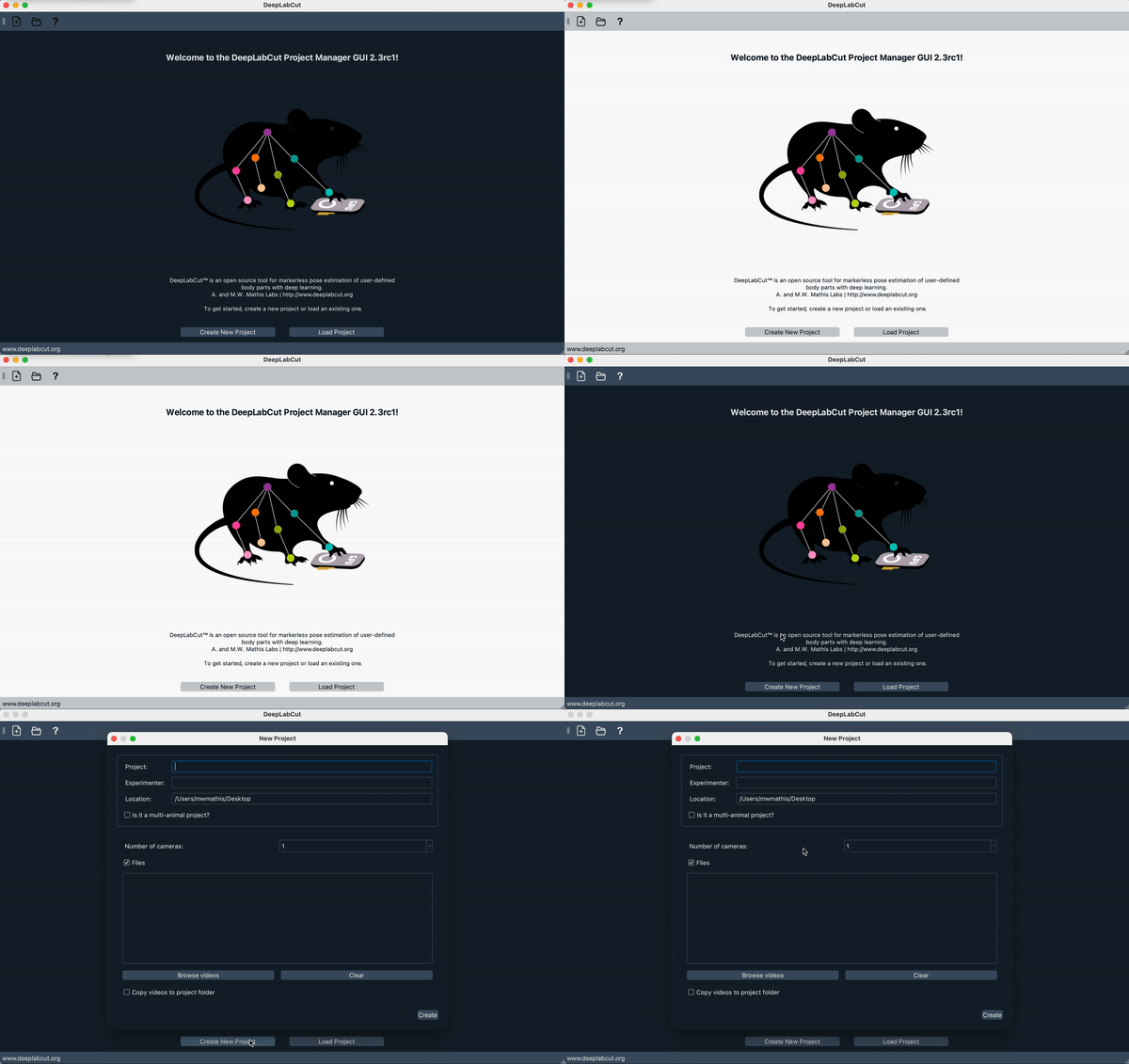
Start at the Project Management Tab and work your way through the tabs to built your customized model and deploy it on new data.
We recommend to keep the terminal visible (as well as the GUI) so you can see the ongoing processes as you step through your project, or any errors that might arise.
- For specific napari-based labeling features, see the ["napari gui" docs](https://deeplabcut.github.io/DeepLabCut/docs/napari_GUI.html#usage).
- To change from dark to light mode, set appearance at the top:

## VIDEO DEMOS: How to launch and run the Project Manager GUI:
**Click on the images!**
Note that currently the video demo is the wxPython version, but the logic is the same!
[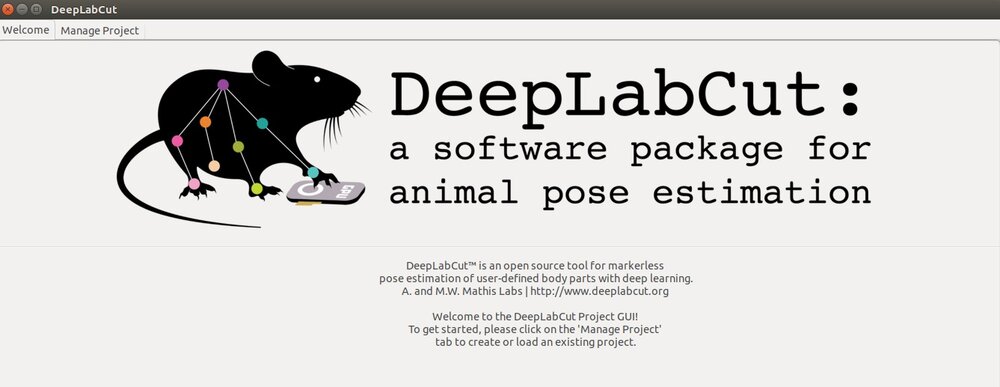](https://youtu.be/KcXogR-p5Ak)
### Using the Project Manager GUI with the latest DLC code (single animals, plus objects): :arrow_down:
[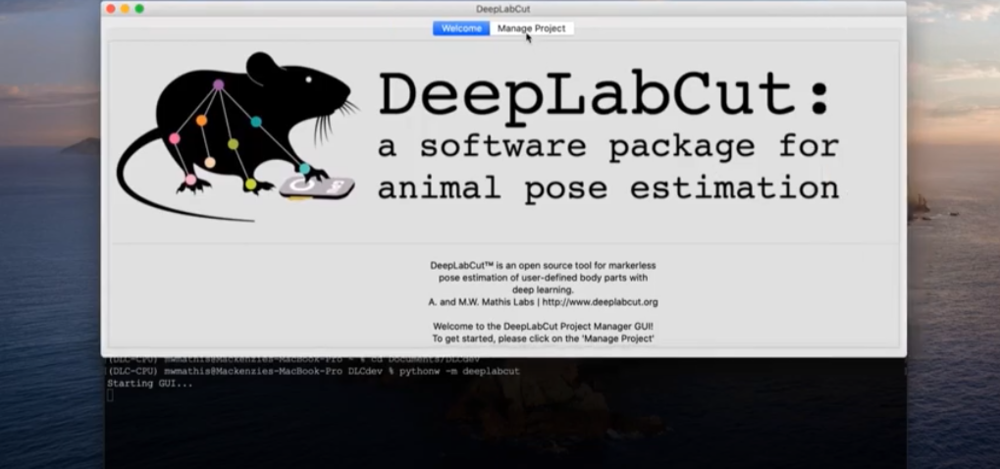](https://www.youtube.com/watch?v=JDsa8R5J0nQ)
[READ MORE HERE](important-info-regd-usage)
### Using the Project Manager GUI with the latest DLC code (multiple identical-looking animals, plus objects):
[](https://www.youtube.com/watch?v=Kp-stcTm77g)
[READ MORE HERE](important-info-regd-usage)
## VIDEO DEMO: How to benchmark your data with the new networks and data augmentation pipelines:
[Watch the video](https://youtu.be/WXCVr6xAcCA)